How to Merge Photos? A Beginner's Guide to Google Photos
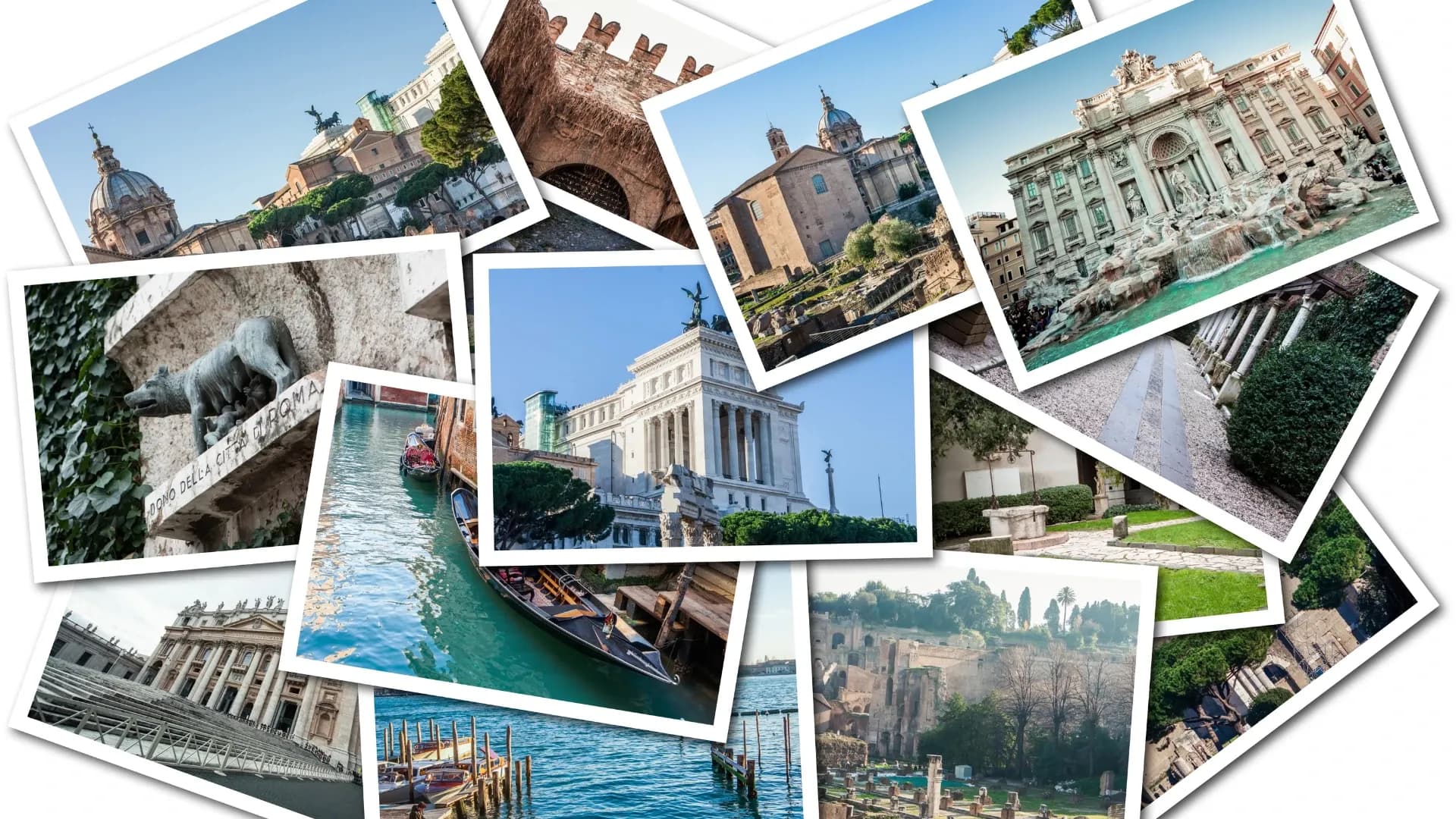
Google Photos built-in function allows you to create beautiful collages using your photos in Google Photos. With various layout options and photo editing tools, you can easily create and share collages with your friends and family using just one app. Here's a detailed guide on how to use Google Photos ‘collage feature.’
How to Merge Photos with Google Photos?
To access the ‘Photo Collage’ feature, follow these steps:
- Go to your photo library
- Tap on the ‘Utilities’ option
- Select ‘Photo Collage’
- You will then be directed to the ‘Collage’ feature.
Select the Photos to Merge
To merge photos, you can select 2-6 photos in the mobile app. Google Photos has an AI-powered photo recognition feature that helps you easily search for your photos. Here's how:
Search for Photos Directly
For example:
- Type ‘sky’ in the search bar to find photos that include the sky.
- Click on a folder
- Click on the AI-recognized facial features
Learn more about Google Photos' search functions at: Amazing Image Search Function on Google Photos
Select Photos in the Album
You can also select photos directly in the ‘Photos’ section.
Adjust the Layout
To make your photo collage more visually appealing, you can adjust the position, size, and frames of the photos.
Long Press and Drag Photos to Change Layout
Long-pressing and dragging photos allows you to easily change their position and create different arrangements for your collage. Simply drag a photo from its original position to a new location.
Zoom In/Out Photos
You can zoom in or out of photos by using two fingers to pinch or expand the image.
Edit and Replace Individual Photos
If you need to make changes to a specific photo, you can quickly triple-tap it to bring up the options to ‘Edit’ or ‘Replace’ the photo.
Collage Frames
There are nearly 20 free collage frames to choose from, and if you have other apps with collage functions, Google Photos allows you to link directly to third-party apps to use other frames, making it very convenient.
H2: Advanced Editing, Adjusting the Colour of Merged Photos
- Google Photos has a built-in photo editing function:
After clicking ‘Save’, click ‘Edit’ to access different features, including adjusting brightness, contrast, saturation, colour temperature, white point, black point, shadows, colour temperature, and even skin tone and blue tone. It especially focuses on skin colour depth and the colours of the sky and ocean, making it very friendly for editing portraits and landscapes.
- You can add drawing, highlighting and text.
- Crop or Rotate:
You can directly crop your photos in Google Photos, as well as rotate and straighten them to keep your tilted photos vertical.
How to share them after merging photos?
After saving your merged photos, you can directly share them with your loved ones and friends on Google Photos without compromising the image quality. In addition, you can also use other common sharing methods such as Facebook, Instagram, email, and more to share these collages and record your cherished memories with those you love.
Learn more about Google Photos' search functions at: Sharing Functions Across Platforms by Google Photos
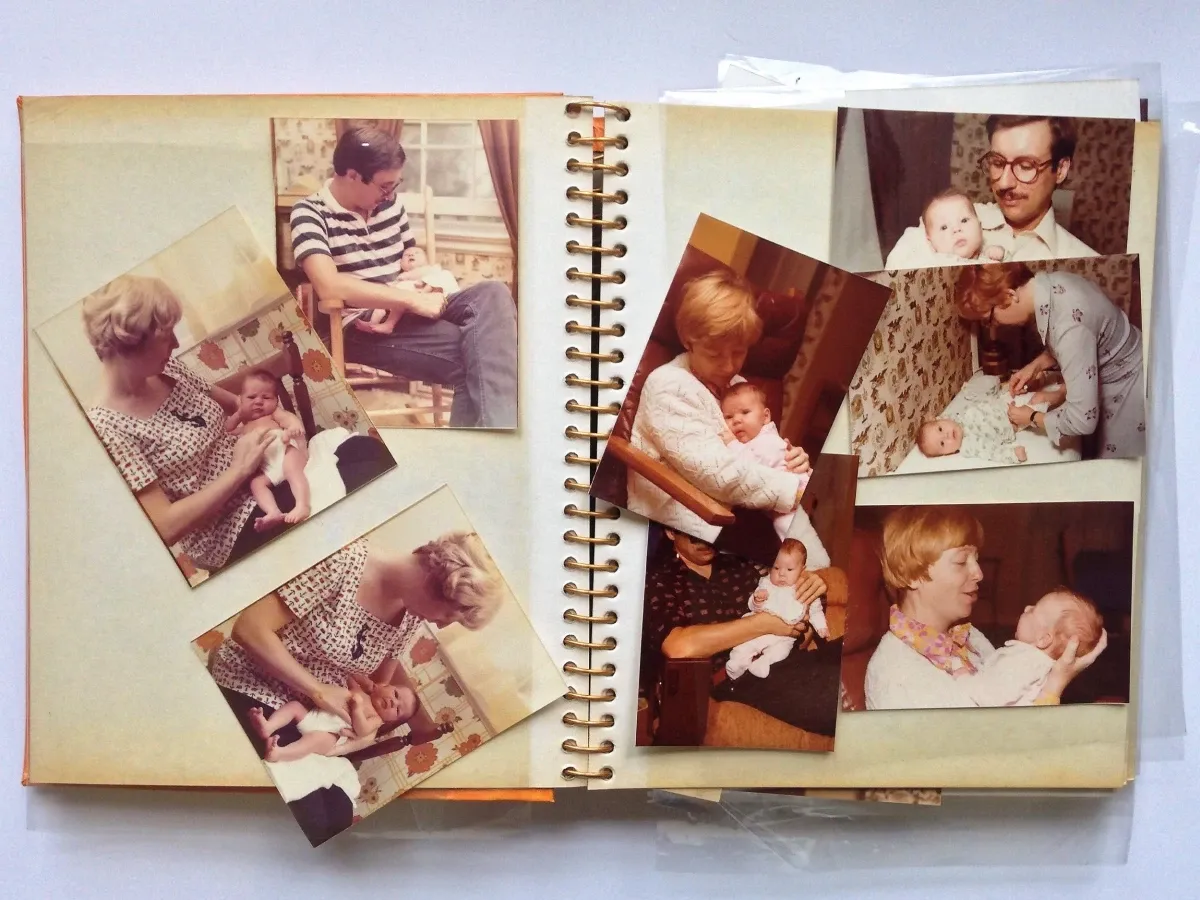
Digitise your albums for more possibilities in merging photos
Capture.HK is a company that provides digitisation services for photos, albums, and videotapes. As a Google Elite Partner, we can directly store your digitalized photos on Google Photos, allowing you to use the editing and collage-making features on the platform to create beautiful collages. Afterwards, you can make various gifts such as postcards and cups for your family and friends.
Learn more about our photo album digitisation service now!