How to upload photos to Google Photos/Cloud?
My mom's pretty good with her smartphone, but she kept getting those annoying "Storage Full" messages. I showed her how to use Google Photos and Google Drive to solve this, and it's made a big difference. If you're also running out of space on your phone, these Google services might help you too.
Google Photos and Google Drive are the most popular places to upload photos. With Google Photos, your images sync across all your devices, while Google Drive gives you the flexibility to organise, share, and store them however you like. Both Google services make it easy to manage your media in just a few clicks.
How to Upload a Photo to Google Drive
Uploading photos to Google Drive is a great way to keep them safe and accessible from any device. Whether you're on your computer or smartphone, you can easily store, organise, and share your favourite images through Google Drive.
1. Log In to Your Google Drive Account
First, open Google Drive on your device. You can do this from a web browser on your computer or the Google Drive app on your phone.
- On Desktop: Go to drive.google.com. If you aren’t logged in, enter your Google account credentials to access your Drive.
- On Mobile: Open the Google Drive app. If you don’t have the app, download it from the App Store or Google Play.
2. Upload a Photo to Google Drive
Uploading photos is easy on both desktop and mobile. Here's how to do it from different devices:
- Desktop:
1. Once logged in, click on “New” in the top left side of the screen.
2. Choose File Upload for a single photo or Folder Upload for multiple files.
3. Choose the photo(s) from your computer and click Open to start uploading.
- Android or iPhone:
1. Open the Google Drive app and tap the + button in the bottom right.
2. Choose Upload, then select the photo(s) from your phone’s gallery.
3. Tap Done to upload.
3. Create a Folder and Upload Photos to It
Organising photos is helpful, especially if you upload regularly. Creating a folder keeps everything tidy:
- On Desktop:
1. Click New, then select Folder. Name the folder.
2. Double-click the folder to open it.
3. Follow the same steps as above to upload photos into that folder.
- On Mobile:
1. Tap the + button and choose Folder.
2. Name your folder, and tap Create.
3. Open the folder, then upload photos directly into it.
4. Upload Photos to a Shared Folder
Uploading to a shared folder makes collaboration easier. Here’s how to do it:
- On Desktop or Mobile:
1. Go to Shared with Me in the left sidebar.
2. Open the shared folder you want to upload to.
3. Upload files just as you would to your own Drive.
Tip: Ensure you have Edit permissions, or you won’t be able to add files to the shared folder.
5. Moving Photos Between Folders
After uploading, you might want to organise or move your photos:
- Desktop:
Drag and drop photos into different folders or right-click and select Move to to relocate files. - Mobile:
Tap the three dots next to the photo, then choose Move to place it into a different folder.
6. Troubleshoot Common Upload Issues
Sometimes uploads can fail or get stuck. Here are a few fixes:
- Check your internet connection: If it’s slow, try reconnecting to Wi-Fi or switching networks.
- File size limit: Ensure your file doesn’t exceed Google Drive’s storage limits.
- App permissions: On mobile, make sure Google Drive has permission to access your files in your phone settings
How to Upload Photos to Google Photos from Any Browser
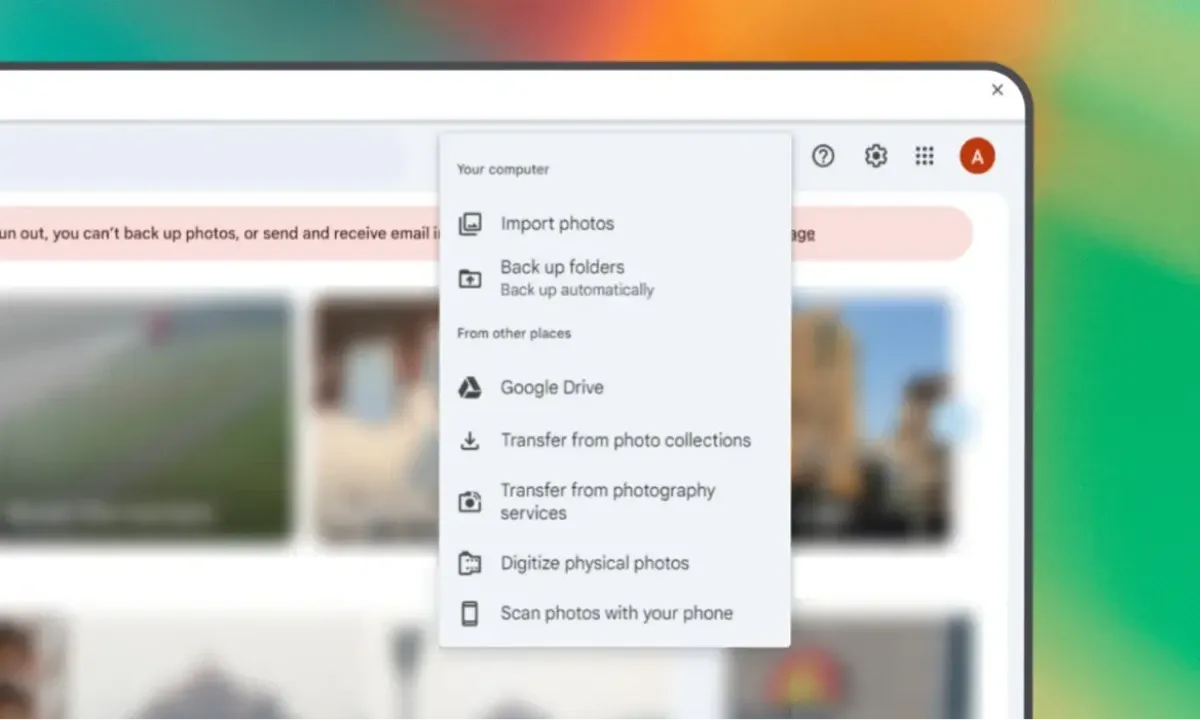
Google Photos is one of the easiest ways to store and organise your images in the cloud. It keeps your photos safe, gives you access from any device, and offers features to organise, edit, and even share them with others. Whether you're using a PC, Mac, or mobile device, uploading your photos is simple.
Step 1: Access Google Photos
First, open any browser like Chrome, Firefox, or Safari. Head to photos.google.com and sign in using your Google account. If you don’t have one, it only takes a minute to set up. For mobile devices, download the Google Photos app from the App Store (for iOS) or Google Play Store (for Android). Once signed in, you're ready to upload.
Step 2: Upload Your Images
There are two ways you can upload your images:
1. Upload from Desktop (Mac or Windows)
You have a couple of options for uploading images from your computer.
- Click the Upload button in the top-right corner, choose Computer, and select the images or folders from your device.
- Alternatively, you can simply drag and drop the photos directly onto the Google Photos page.
It’s that easy, and this works on both Mac and Windows devices. If you want to add photos into specific albums, you can do so during the upload.
2. Upload from Mobile Devices
If you're using an Android device or iPhone, open the Google Photos app. Tap the + icon at the bottom-right of the screen, then select Upload. Choose your photos from the gallery or Google Photos app. You can even upload directly from Dropbox or other cloud storage apps.
- For iOS, navigate to the file location within the app, select the photos, and click Upload.
- For Android, the steps are nearly identical, making this process seamless across platforms.
How to Prepare Your Photos for Google Upload
Google Photos should handle most of your image files like .jpg, .png, and .webp without any trouble. But there are a few things you can do to ensure everything goes smoothly:
- Keep an eye on file size and resolution: Aim for a resolution between 250 pixels and 25MB. This balance keeps your photos looking sharp without hogging too much storage space.
- Stick to supported formats: Google Photos accepts formats like AVIF, BMP, GIF, HEIC, ICO, JPG, PNG, TIFF, WEBP, and some RAW files. Keeping your images within these formats helps avoid any upload issues.
- Watch for size limits: Each photo should be under 200MB. If your files are too large, consider resizing them before uploading.
- Common upload problems: If your photos aren't uploading, check if the file type is supported or if the file is too large. Resizing or converting the file can usually fix these issues.
Frequently Asked Questions
1. How do I search for a picture on Google?
To search for a picture on Google, go to Google Images. Drag the image into the search bar. If it's online, right-click to copy the image address. Then click the camera icon on Google Images and paste the URL.
2. What’s the fastest way to upload photos to Google Photos?
To get your photos onto Google Photos quickly, turn on "Back up and sync." This feature automatically uploads all your photos from your device.
3. Can I upload all of my photos to Google Photos?
You can upload all your photos from your phone or computer. Just turn on "Back up and sync," and your photos will automatically upload. Remember, Google gives you 15GB of free storage across Gmail, Google Drive, and Google Photos. If you need more space, get a Google One plan.
4. Can I manually upload photos to Google Photos?
Yes. Visit the Google Photos website and click the "Upload" button in the top right corner.
5. Where do my photos go when I upload them to Google Photos?
When you upload photos, they’re stored in your Google Photos library. You can access them anytime by signing into your Google account and visiting Google Photos.
Your Photos, Your Way
No matter how you choose to upload your photos—whether through Google Drive, Google Photos, or directly from your device—the process is designed to be simple and convenient. Each method has its perks, so pick the one that best suits your needs.
For those looking to keep everything in one place and easily accessible across devices, Google Photos is an excellent choice. If you prefer more control over organisation and sharing, Google Drive offers that flexibility. Whatever your preference, Google makes it easy to keep your memories safe and sound.
Loading...