USB-A or USB-C? Opening Your Digitised Memories on Any Device
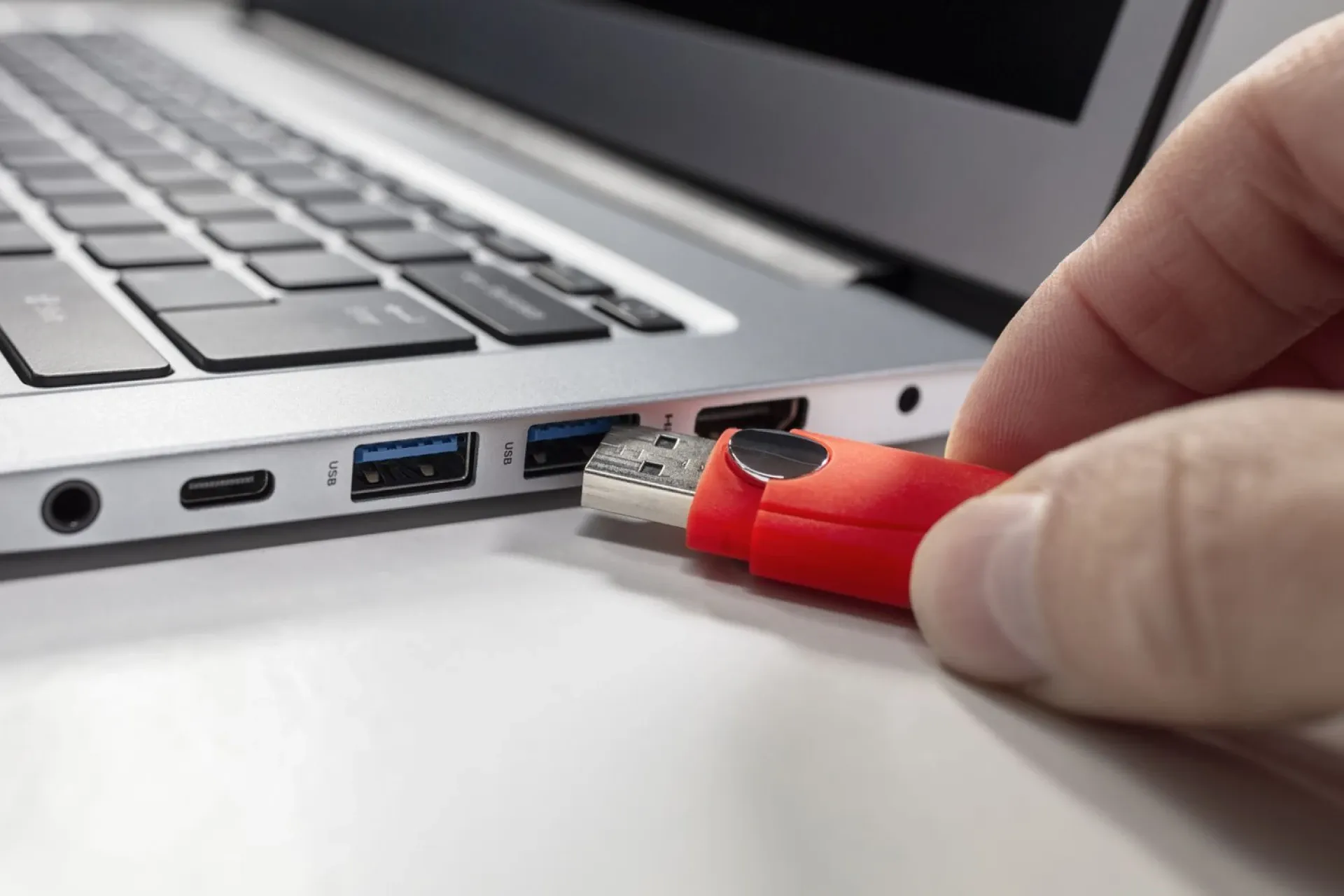
When your digitised photos and home videos come back on a USB flash drive, the next step should be simple: plug it in and watch. In practice, one person in the family has a new laptop with only USB-C ports, another has an older iPhone, and the TV in the living room has a rectangular USB-A socket at the back. Here is how to get your files open on all of them, and how to keep them safe once you do.
USB-A and USB-C in one minute
USB-A is the flat, rectangular plug that only goes in one way up. You find it on most desktop computers, older laptops, TVs, set-top boxes and many car stereos.
USB-C is the small, rounded plug that fits either way up. It is now standard on most Android phones, recent iPads, newer laptops and iPhones from the iPhone 15 onwards.
If your drive's plug doesn't match the port, a small USB-A to USB-C adapter solves it. They are inexpensive and sold at most electronics shops, so it is worth keeping one in a drawer.
Opening your files on each device
Windows PC or Mac
Plug the drive in and it appears as a new drive in File Explorer or Finder. Copy the whole folder to your computer before you start browsing, so you are working from a copy.
Android phone or tablet
Most Android devices with USB-C can read a flash drive directly. Open the Files app and the drive appears as external storage. Photos open in the gallery viewer and MP4 videos play in the normal video player.
iPhone and iPad
On models with USB-C, the drive shows up under Locations in the Files app. Older iPhones with a Lightning port need a Lightning-to-USB adapter, such as Apple's camera adapter; with it connected, the drive appears in Files the same way. From there you can save photos and videos to your Photos library.
Smart TV
Many TVs can play photos and MP4 videos straight from a USB stick: plug it into the USB socket and choose USB or Media as the input. Menus differ between brands, and some older sets are picky about file types, so test a couple of files first. This is the easiest way to show digitised home videos to the whole family on the big screen.
What is on your Capture HK USB
When we digitise your collection, the files use formats that open almost everywhere:
Photos, slides and negatives: high-resolution JPG.
Videotapes: MP4.
Cassettes and other audio: MP3.
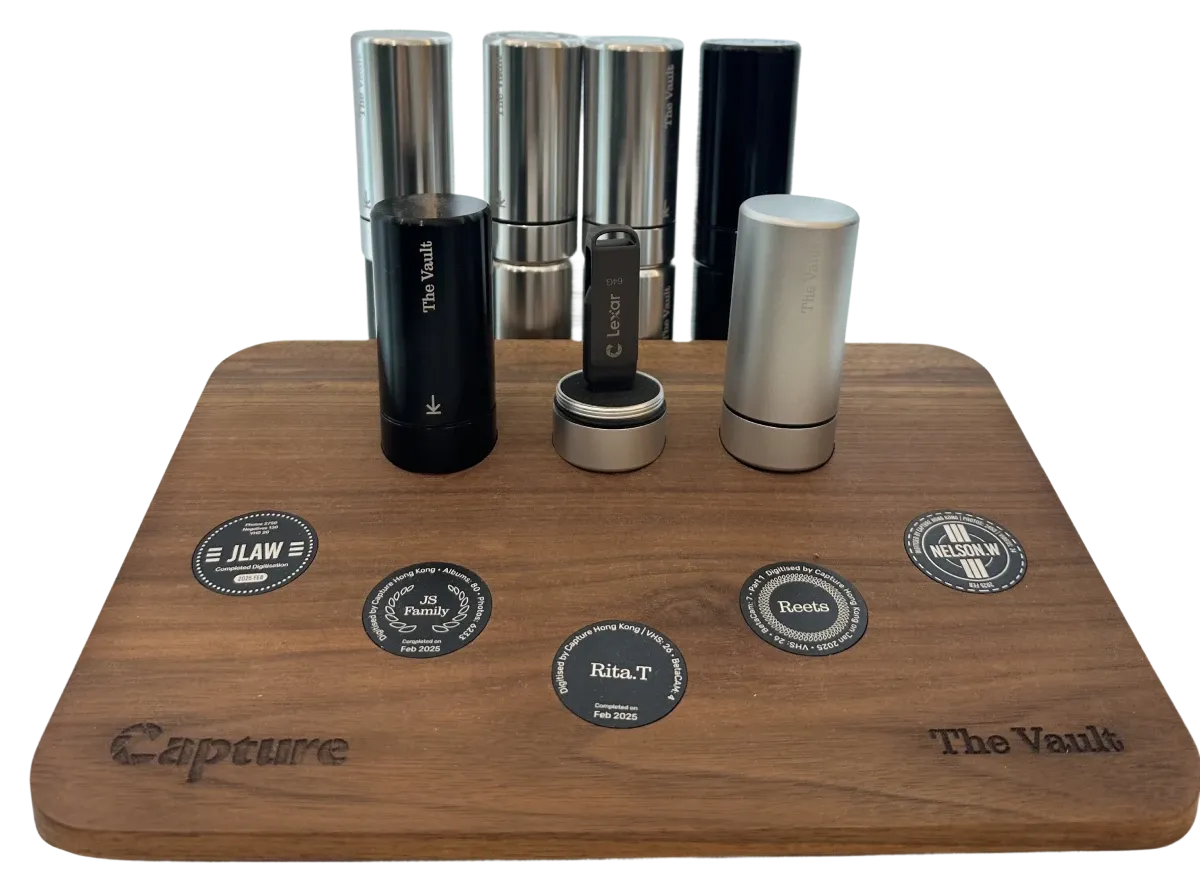
Your files come on our Memory Box USB (HK$99). If you prefer, we can also upload them to your Google Photos account (HK$99), so relatives in other cities can see them without passing a drive around. For a USB that will be kept as a family keepsake, The Vault is an aluminium case, laser-engraved, made to hold it.
Keeping your memories safe
Make at least two copies. A single USB can be lost, stepped on or left in a hotel. Keep one copy on a computer or external drive and another in a cloud service.
Eject before unplugging. Pulling the drive out while files are still being written can corrupt them.
Store it somewhere dry. Hong Kong's humidity can corrode metal connectors over time. A dry cabinet or a sealed box with silica gel is better than a drawer by the window.
Copy, don't edit, the originals. If you want to crop, trim or retouch, work on a copy and keep the delivered files untouched.
Share copies, not the drive. Rather than lending the USB to each relative, send them a Google Photos link or copy the files onto their own drive.
Frequently asked questions
My computer doesn't see the drive. What now?
Try another port and another computer first. If it still doesn't show up, WhatsApp us on +852 2882 8707 and we will help.
Can I play the videos on a TV without a computer?
Usually, yes. Most modern TVs with a USB socket play MP4 files directly. If yours doesn't, a laptop connected to the TV with an HDMI cable works as a backup.
Can I get more than one copy?
WhatsApp us when you place your order to ask about extra copies, so each branch of the family can have its own. Alternatively, copy the files onto their drives yourself or share a Google Photos album.
To see what we digitise and how the files come back, visit our pricing page or learn more about The Vault. When you are ready, start your order.